Get started with the Workflow Editor
The Workflow editor is the visual canvas where you design and execute automated sequences of tasks. In GlobalAI, every workflow resides within a Workspace, which provides the structured environment and resources needed to orchestrate your automation.
This guide helps you understand the main features of the editor interface so you can start building.
Navigate the editor views
The editor provides two ways to view and build your automation logic.
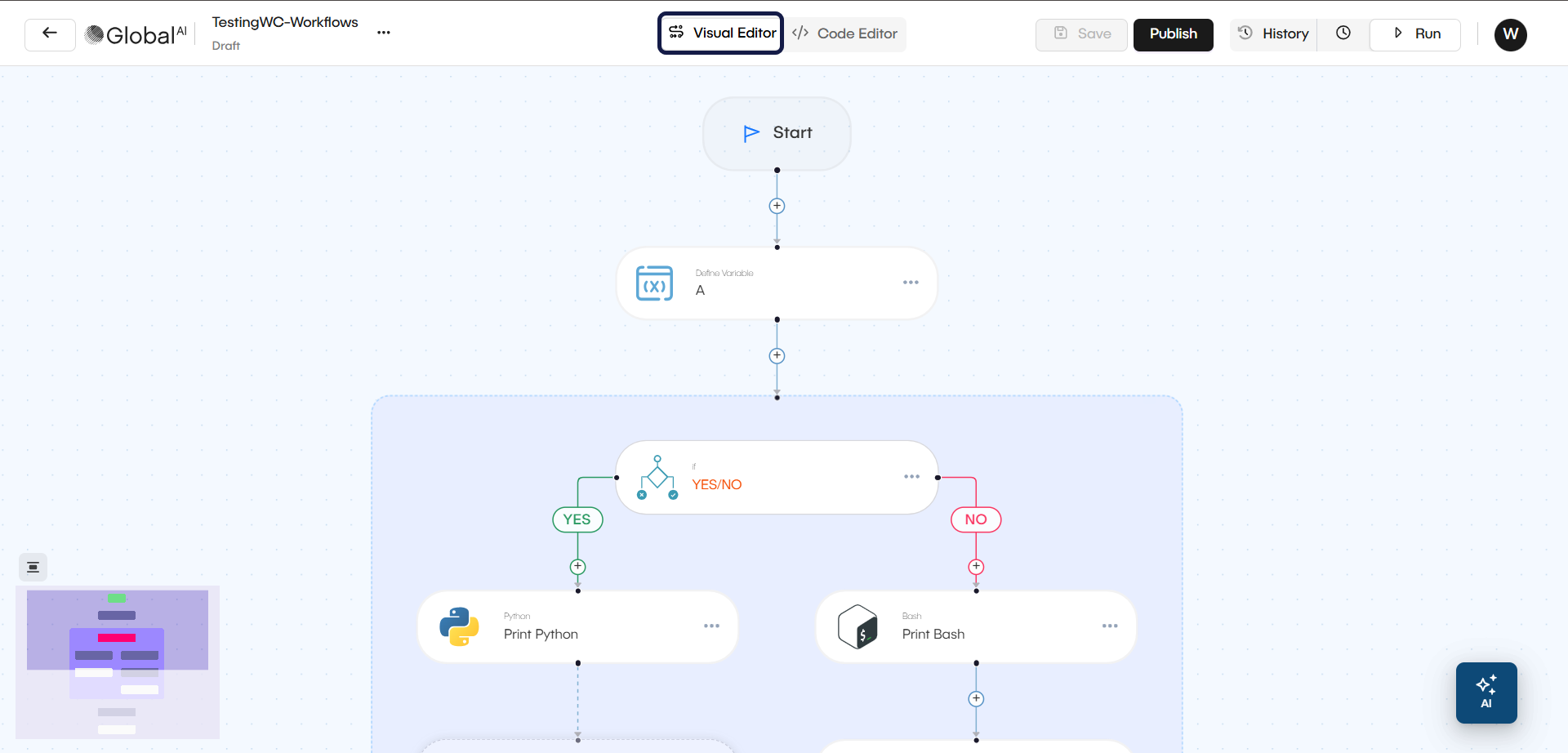
- Visual editor This is the default graphical interface. It allows you to add and connect nodes in a visual flow. Most users prefer this view for building and managing workflows.
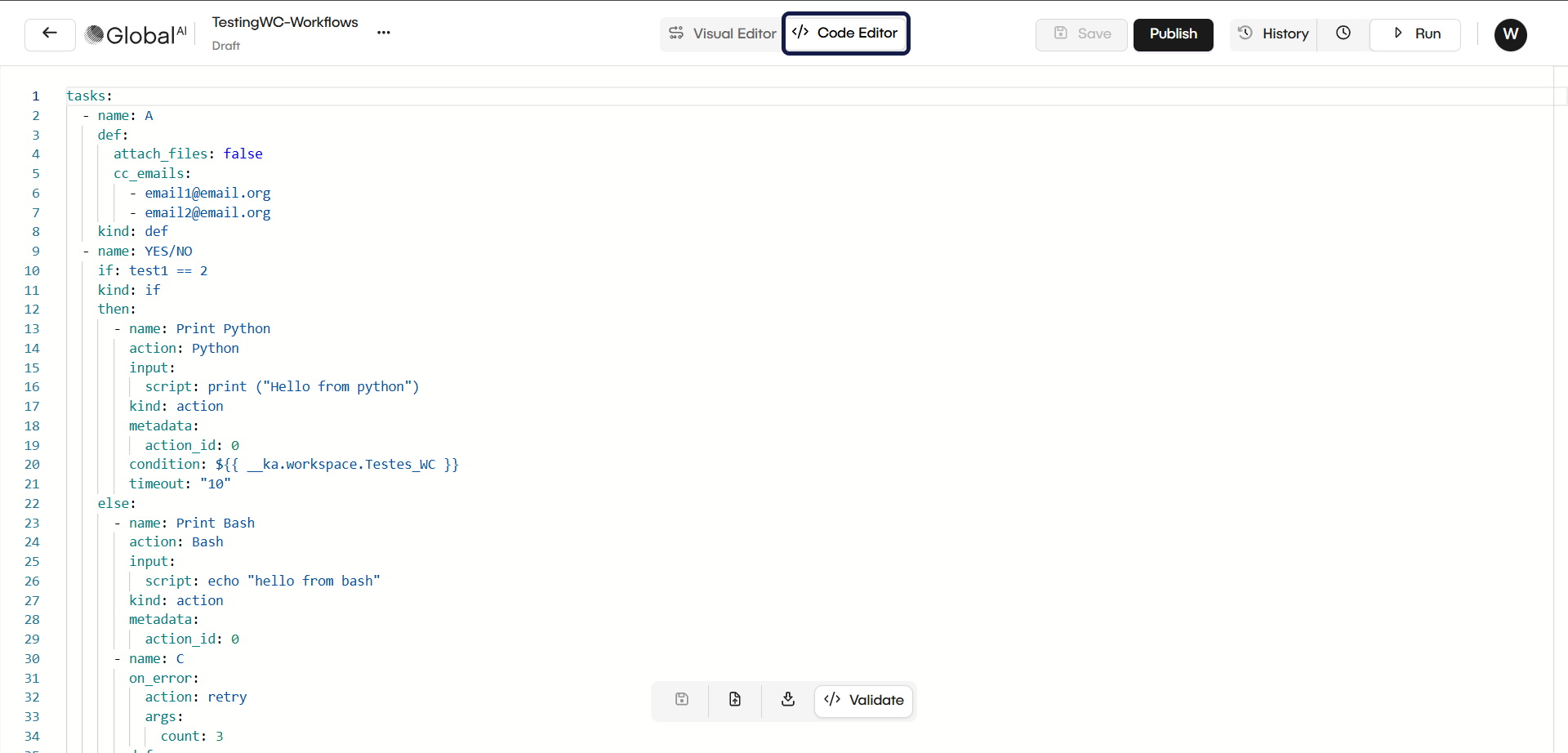
- Code editor This view shows the underlying YAML configuration for your workflow. While you can build visually, the Code Editor is helpful for advanced tasks. For example, it makes it easier to copy, paste, or duplicate large sections of your automation to maintain consistency across your Workspace.
Add Nodes to your Workflow
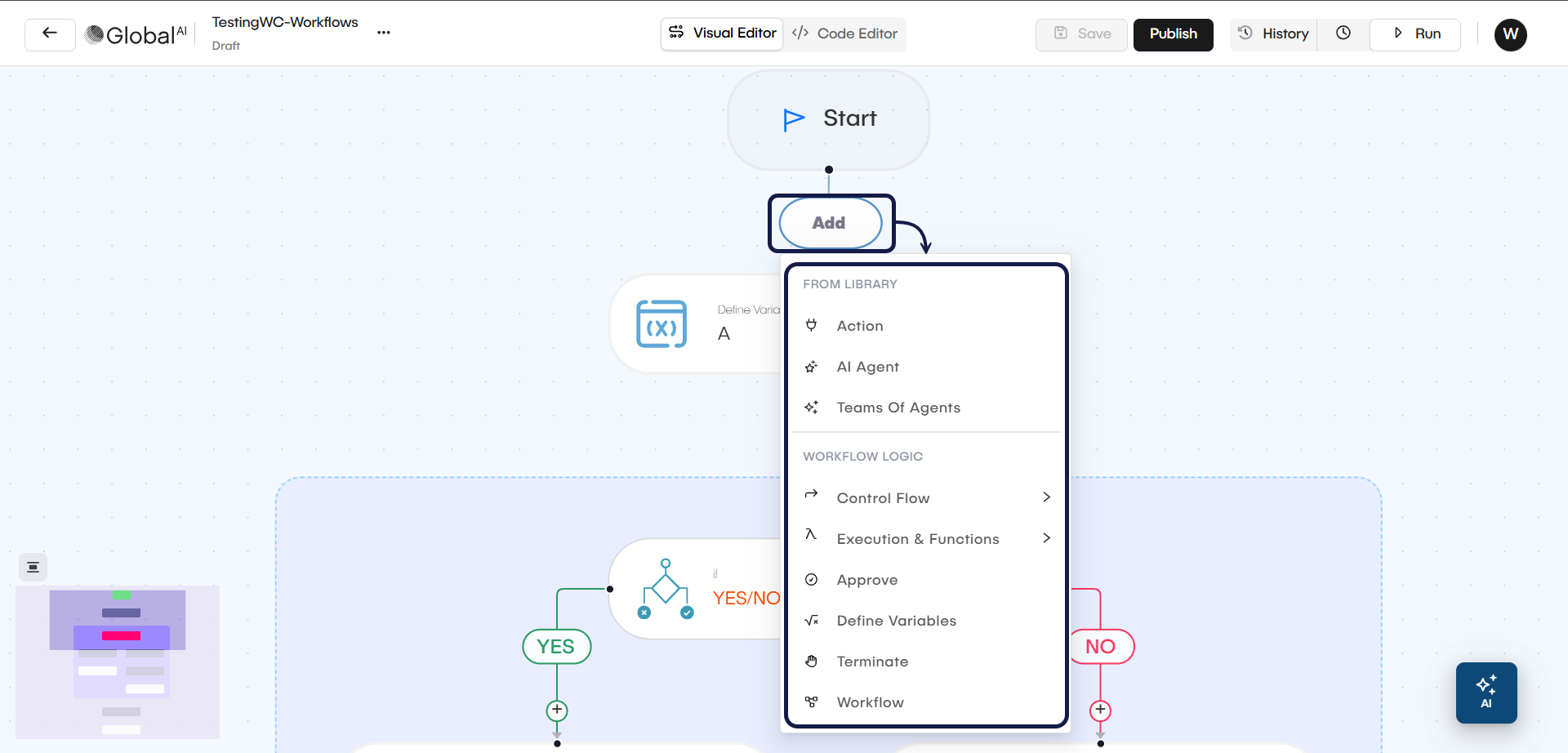
Workflows are built using nodes. A node is a building block that represents a specific action, script, or logical step in your automation.
You can add new nodes at the end of your flow or in between any two existing nodes. The editor provides a library of different node types to build your automation.
Run and validate your Workflow
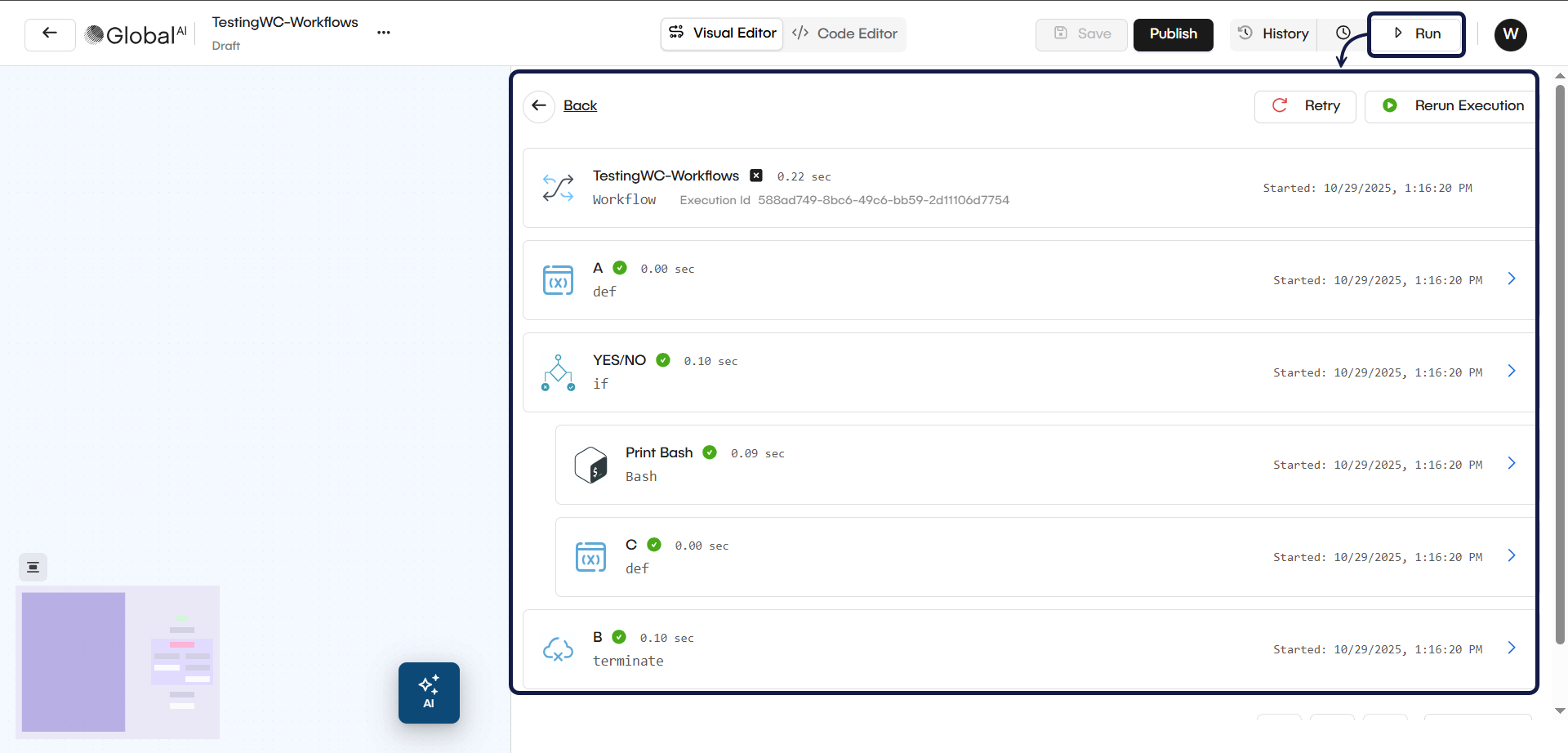
As you build your workflow, you can test it at any time by using the Run button.
After an execution, you can select the run from the History tab. This shows you the detailed output of every node, including any logs, outputs, or errors. This is the primary way to debug your workflow and ensure your logic is correct.
Related articles
Now that you know how to use the Workflow Editor, you can explore these related guides.